Odoo functional consultant interview: the practical task
An Odoo functional consultant interview usually ends with a practical task: you are given a short client brief and asked to run it in Odoo, most often a sale that goes from quotation to delivery to invoice to payment. What the interviewer watches is whether you can finish the flow, explain each step, and notice when something looks wrong.
I have hired consultants. Resumes said "Odoo experience" and the interview said otherwise: the same people who listed five apps could not tell me what happens to stock when a delivery is validated. This article describes the task the way I would give it, so you can rehearse it.
What does the practical task look like?
A typical brief fits in four lines: a new customer orders ten units of a stockable product, the company delivers from one warehouse, invoices after delivery, and the customer pays by bank transfer. You get a blank Odoo database (Odoo 18 or 19) with the Sales, Inventory and Invoicing apps installed.
The interviewer is not checking that you know every button. They want to see that you can:
- Set up the master data before the transaction.
- Run the flow in the right order.
- Say out loud what each document does to stock and accounting.
- Check the result at the end.
Which setup comes first?
Master data comes before any order. Candidates who jump straight to the quotation hit missing prices or missing costs halfway through and lose time.
- Create the customer with a name, an address and a payment term if the brief gives one.
- Create the product: type Goods, tracked by quantity, with a sales price and a cost.
- Put some stock on hand, for example by adjusting the quantity on the product.
- Look at the product category and its costing method. This matters later for valuation.
How do I run the flow step by step?
1. Create and confirm the quotation
Create the quotation in Sales, add the customer and the product with the quantity, and confirm it. Confirming turns the quotation into a sales order and, with Inventory installed, creates a delivery.
2. Open the delivery
Open the delivery from the sales order. Odoo reserves stock when it is available, so the delivery shows as Ready. If it does not, the stock is not there, and that is the first thing to explain to the interviewer instead of forcing it through.
3. Check the invoicing policy
The product's invoicing policy decides when an invoice can be created: on ordered quantities or on delivered quantities. Say which one your brief needs. In my example the client invoices after delivery, so the policy must be delivered quantities.
4. Validate the delivery
Check the Quantity on the delivery lines: in Odoo 18 and 19 it is usually already reserved, so you only confirm it matches what ships. Then click Validate. If the quantity is lower than the order, Odoo offers a backorder for the rest.
If the product category has Automated inventory valuation, validating the delivery also posts the accounting entry for the stock leaving the warehouse. Without it, the stock moves but no journal entry appears at that moment. This is the point where most candidates go quiet, so practice saying it.
5. Create the invoice
Go back to the sales order and create the invoice. Odoo proposes the delivered quantities. Review it, then confirm it, which posts the invoice and the receivable.
6. Register the payment
Register the payment on the invoice, choosing the journal and the date. The invoice moves to Paid once the payment is reconciled with it.
What follow-up questions should I expect?
After the flow, interviewers ask about the cases you did not run. Be ready for these:
- What if the customer takes only six units now? Validate the delivery with the six units and let Odoo create the backorder for the remaining four. The invoice covers six.
- What if the customer returns two units? Use the return action on the delivery, then a credit note on the invoice.
- How do you see what the customer still owes? Open the Partner Ledger, or the customer's Invoices list filtered on unpaid.
- Why does the delivery not post a journal entry? Check whether the product category uses automated valuation.
What mistakes do juniors make in this task?
Three come up again and again:
- Skipping the setup and creating records on the fly, so the cost or price is empty.
- Clicking through without saying what each step does to stock or accounting.
- Finishing without checking: no look at the stock quantity, the invoice status or the ledger entries.
The fix for all three is the same: after each step, name the document that was created and what changed because of it.
How do I prepare for it?
Run this exact flow three or four times with different twists: a partial delivery, a return, a different invoicing policy, a product with automated valuation. If you are earlier in the journey, my article on how to become an Odoo consultant (https://www.praxio.pro/blog/how-to-become-odoo-consultant) covers the path before the interview.
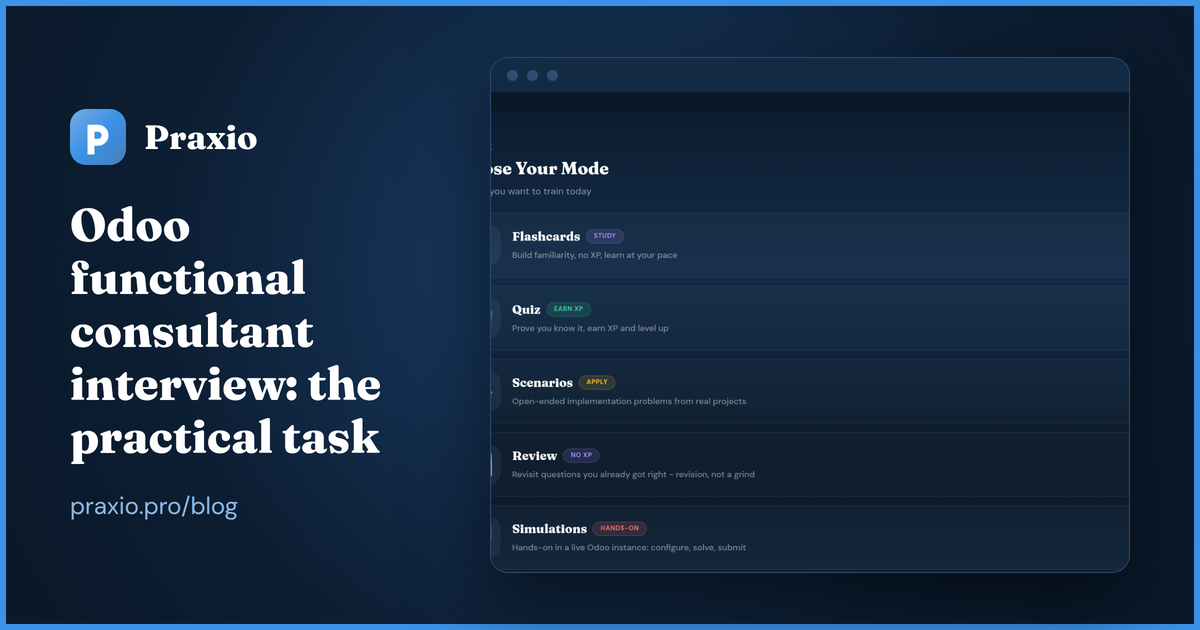
Praxio gives you five ways to practice in one place: flashcards to study, quizzes to earn XP, written scenarios to apply, review of what you got wrong, and hands-on Simulations in a live Odoo instance. The Simulations are the closest to this interview task, and you can find them at https://www.praxio.pro/app/practice/simulations.
Ready to start practicing?
Take the free Consultant Readiness Assessment and find out where you stand across five consulting dimensions.
Take the Free Assessment →